

How to Customize your Loopy Loyalty Digital Stamp Card with Different Stamp Images
Learn loyalty-program guidance for How to Customize your Loopy Loyalty Digital Stamp Card with Different Stamp Images.
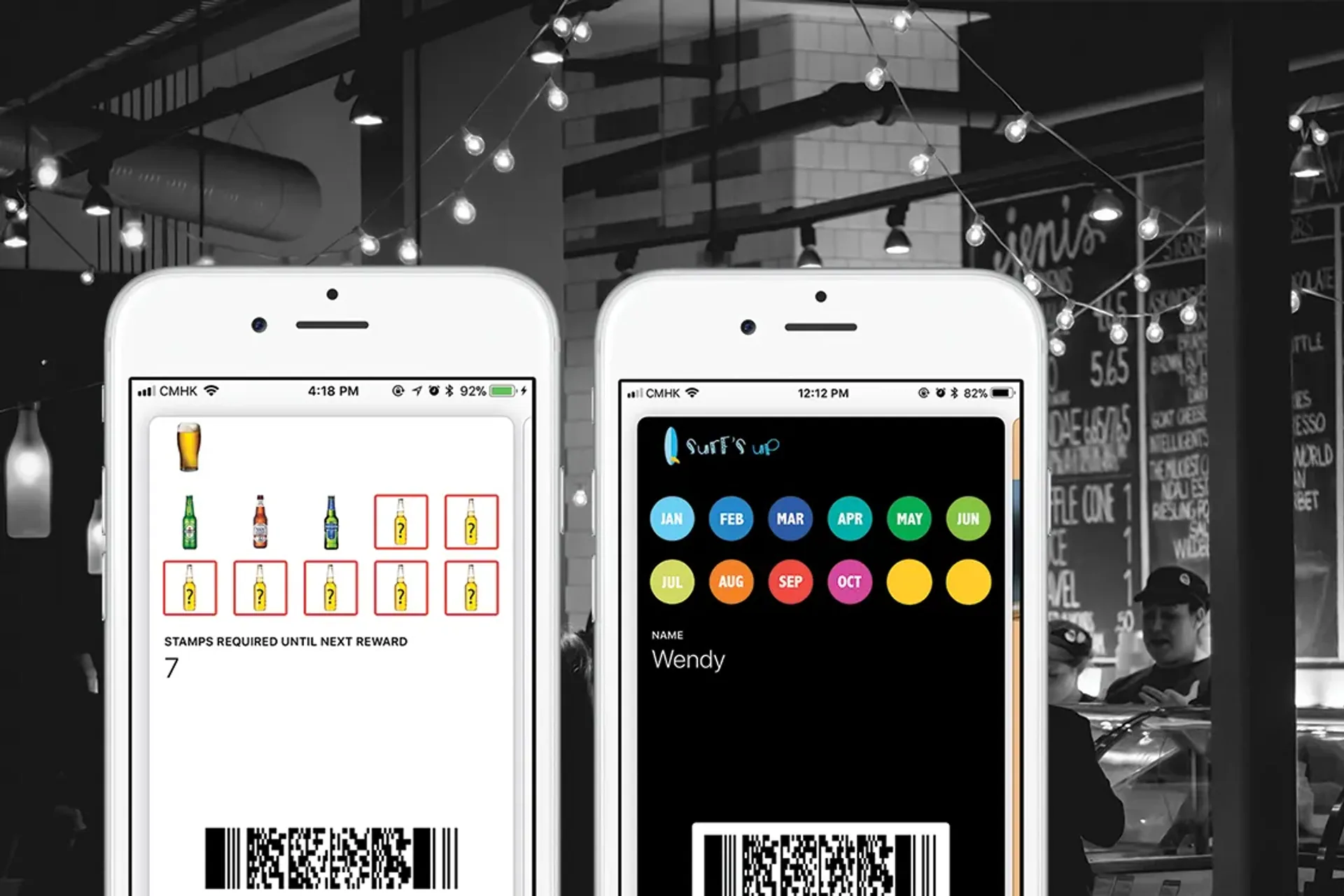
Many of you have told us that you love the simplicity of Loopy Loyalty.
That you can easily select the number of stamps you want on your card.
Select from our gallery of stamp images.
Change colors and text.
And you’re good to go!
Now, there may be a time when you want to take your digital stamp card game to the next level.
This post will show you how to do just that — customize each stamp image to be something different. For example:
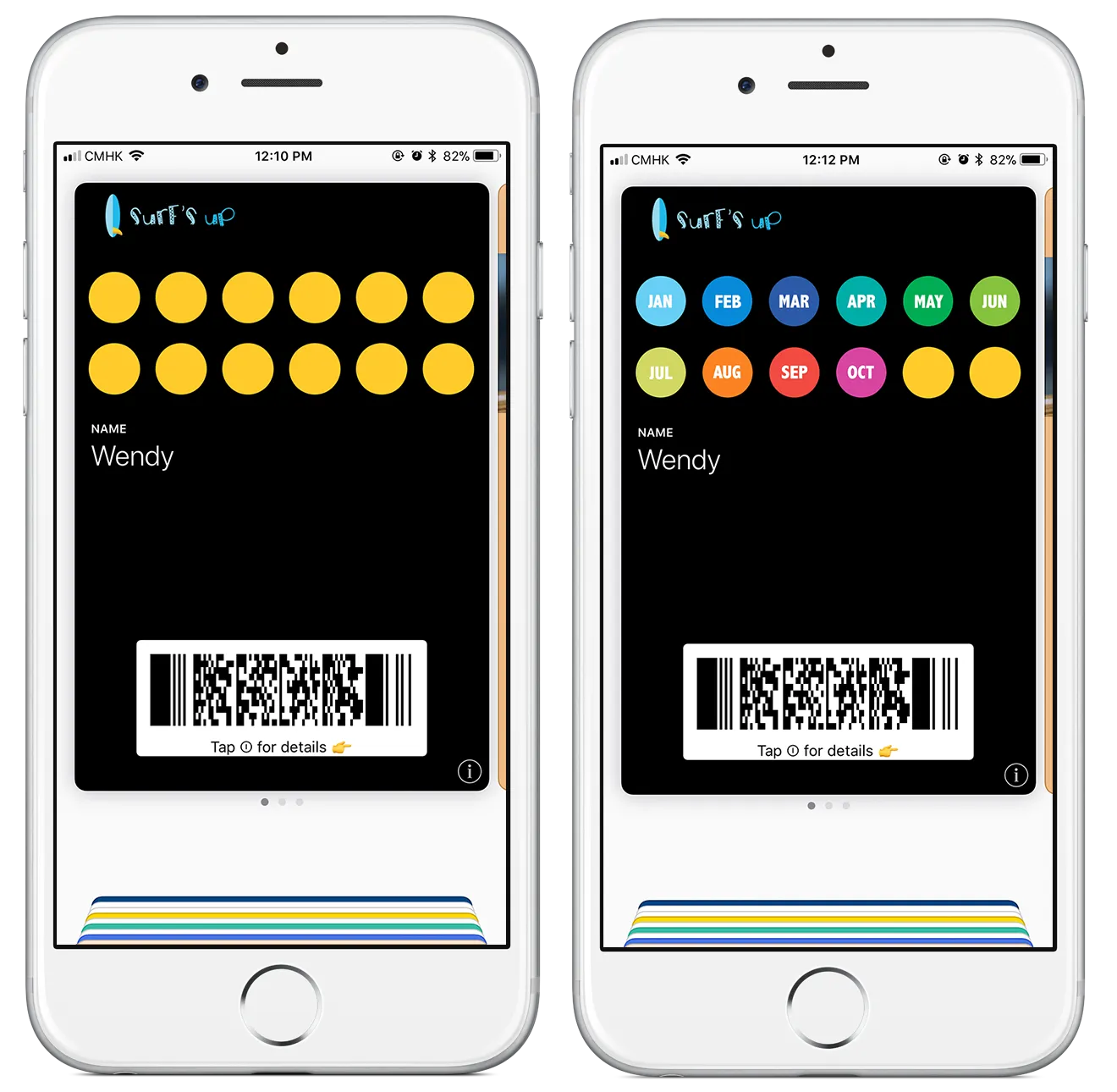
Each stamp represents a month in the year
This would be great for those who pre-purchase yearly packages and want to show month by month consumption/usage.
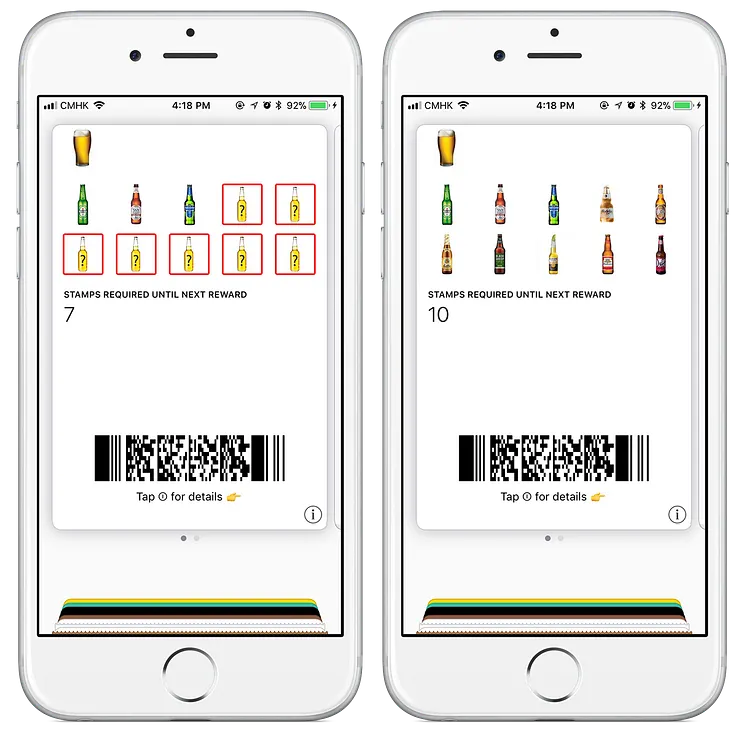
Each stamp represents a mystery prize
Every stamp customers earn can entitle them to a mystery prize. Like beer. Because who doesn’t like beer?
Before we begin, I just want to mention that this method isn’t for everyone. It’s more advanced than the simplicity that Loopy Loyalty currently offers, so keep this in mind before beginning.
Here’s how to set it up.
1 — First, determine how many stamps you want on your digital stamp card. This is an important step, because it will make designing each stamp a lot easier later. If you want to change the number of stamps, you’ll need to start again.
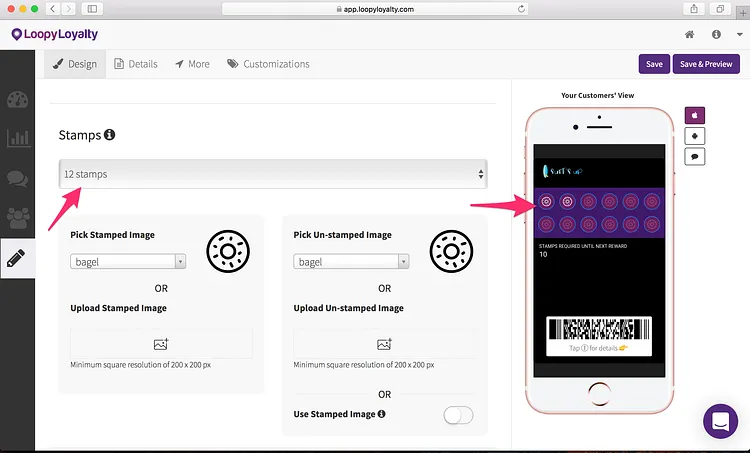
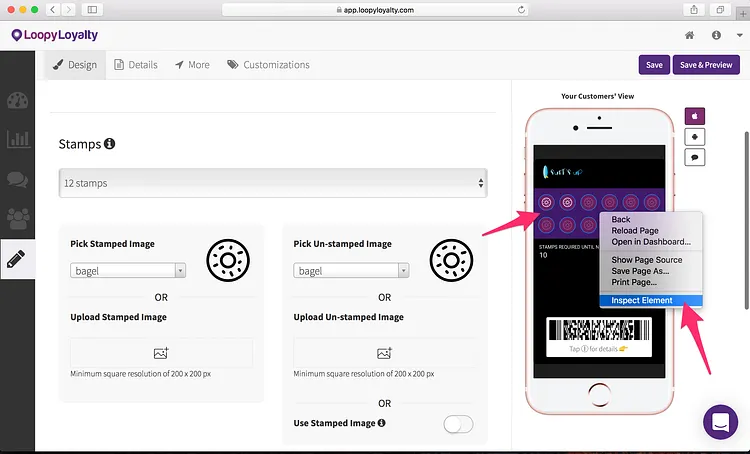
2 — Right click on the image and click “Inspect” or “Inspect Element”. This will pull up some code. Not to be worried or afraid at all.
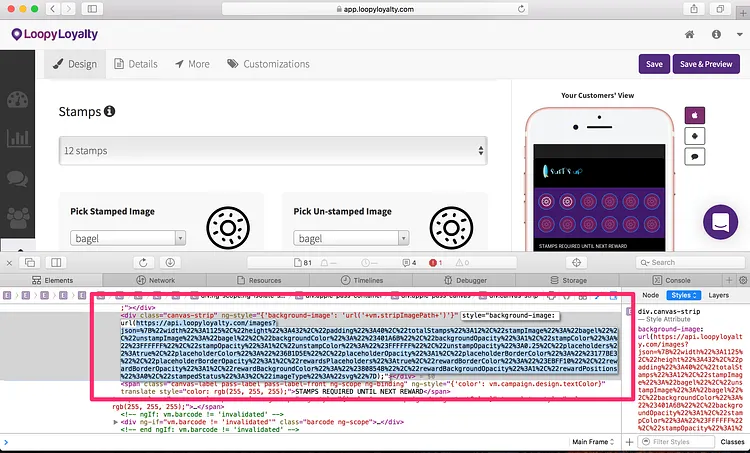
3 — Find the line that starts with style=”background-image:url(. Copy and paste the URL highlighted (as seen below) and open it in a new window. This is the URL for the complete stamp image.
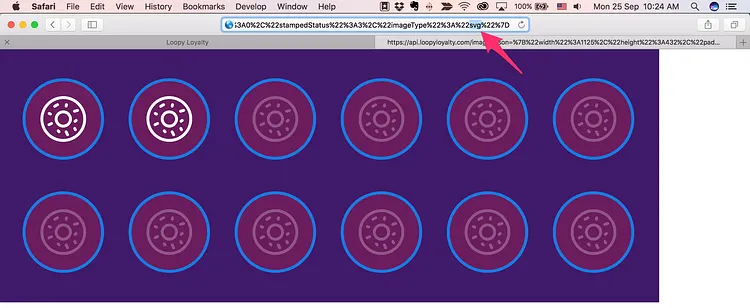
4 — Click in the URL and find where it says ‘svg’ at the end. Replace ‘svg’ with ‘png’ and hit enter.
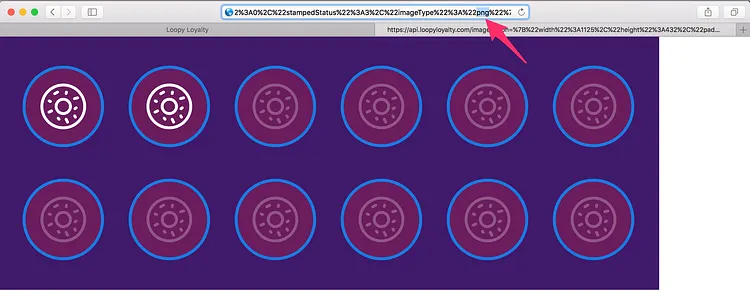
5 — Right click the image and save this image to your computer.
The reason why we need this image is because it will be used as the template to create your custom background image. This is so that when you issue stamps it goes perfectly where it should.
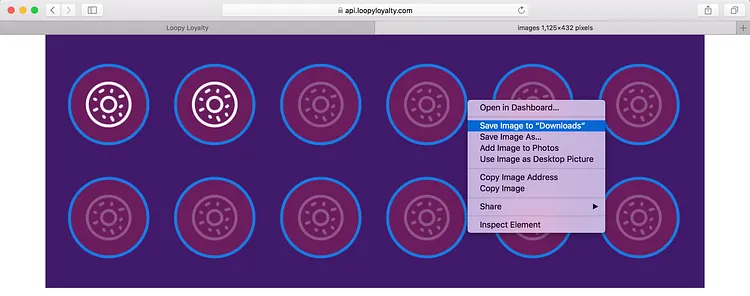
6 — Open the image in Photoshop and place your custom stamp images/designs over each circle.
This part does require some creativity and design on your side. You can completely cover the circle, use a square, and do pretty much anything you want with your design.
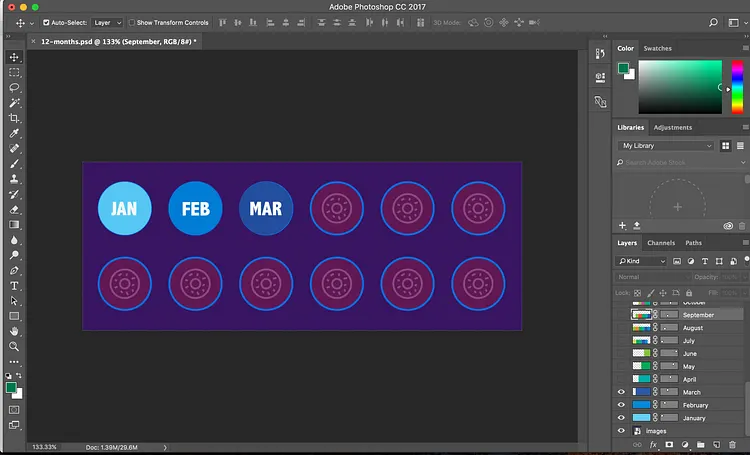
When you’ve completed every stamp, hide or delete the original image that you downloaded and export your image.
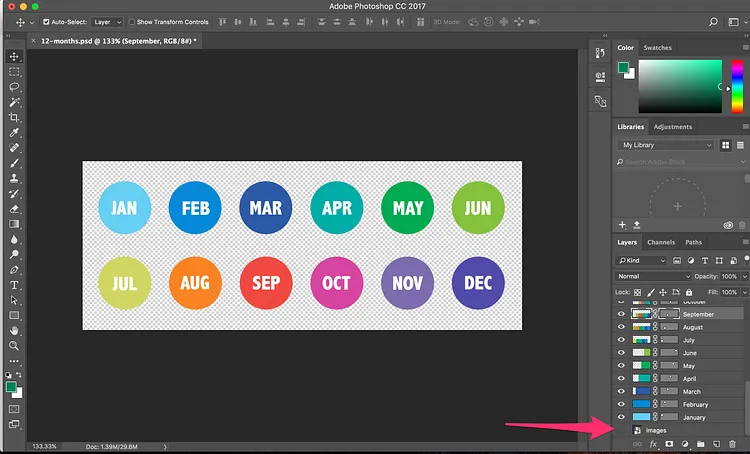
8 — Now that you’ve created your image, let’s jump back into Loopy Loyalty and adjust a few things.
a — Stamp circle: set the opacity to 0. b — Stamp circle border: set the opacity to 0. c — Stamped image: set the opacity to 0.
The opacity is the last field in the brackets. This is to make your custom background image and unstamped image visible.
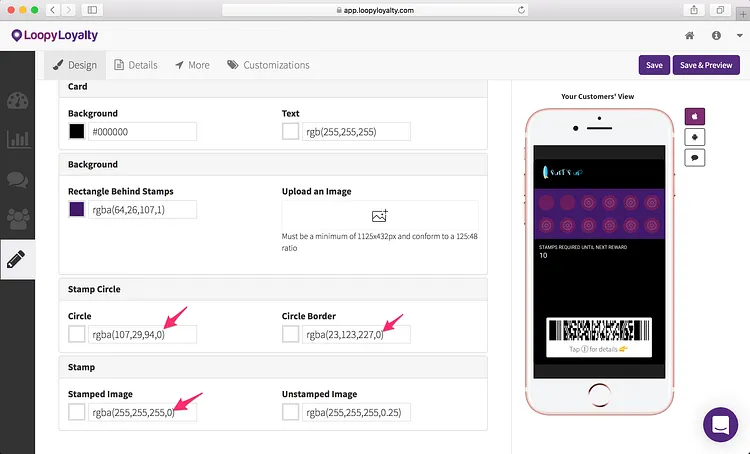
9 — Upload your background image and unstamped image.
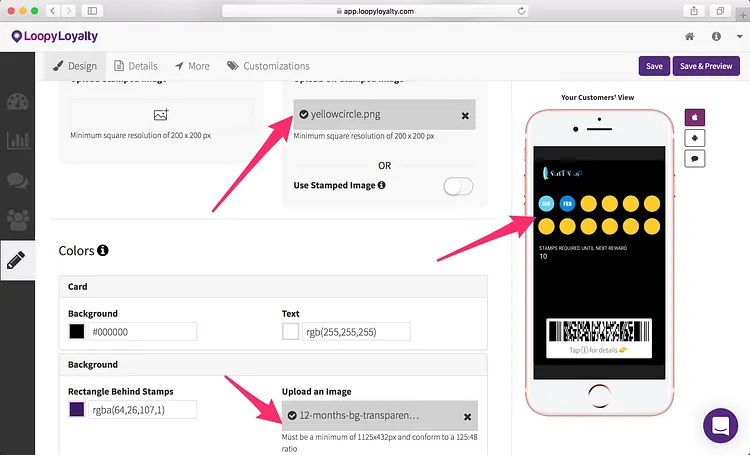
10 — Preview this on your device and when you’re happy with it, activate your card design!
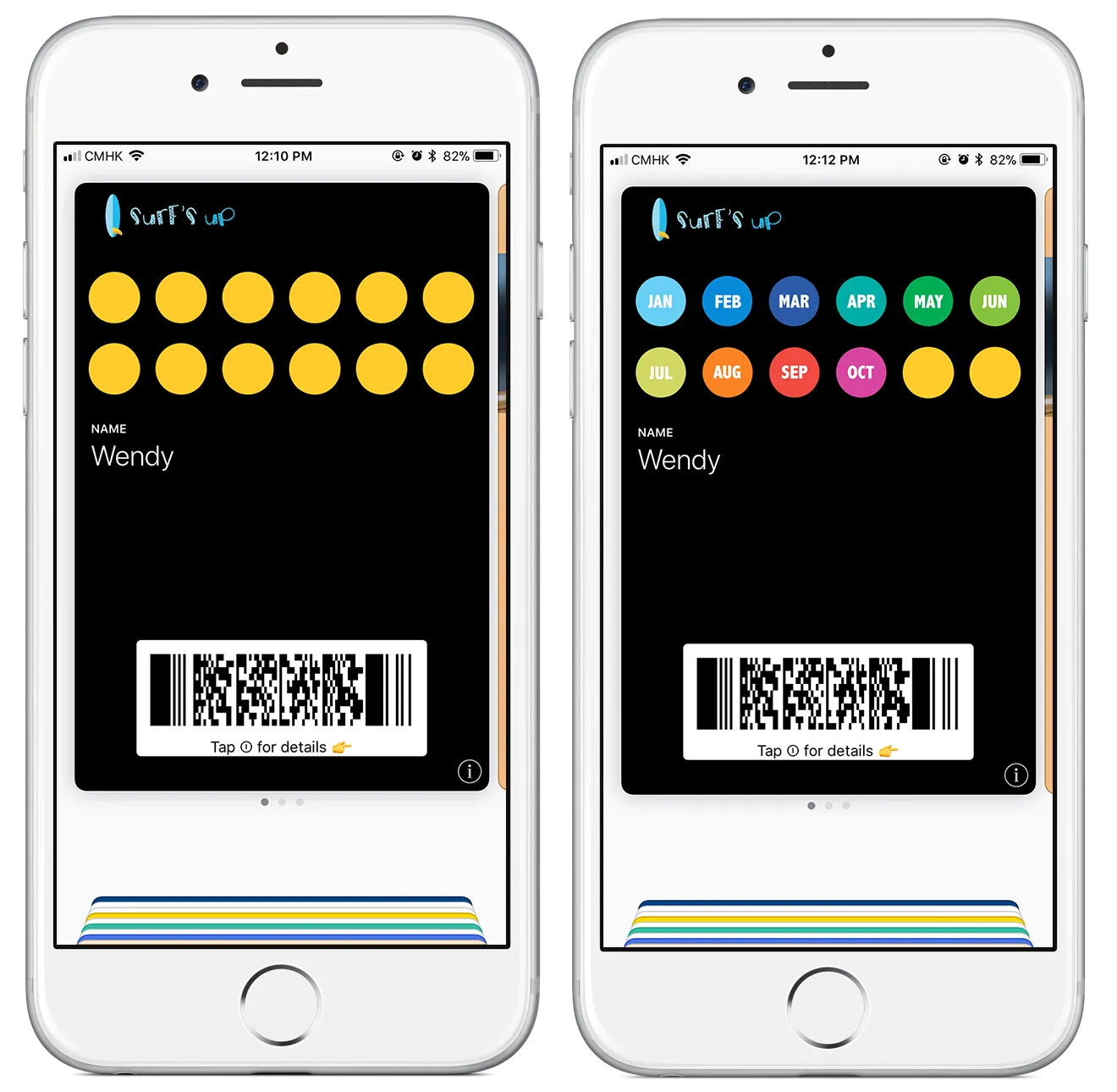
This is what your card will look like when it’s blank (left) and when you’ve issued stamps (right).
Press enter or click to view image in full size
Start customizing your stamp images today
Visit https://loopyloyalty.com/ to sign up and create your very own digital stamp card. We also have plenty of resources that you can refer to at https://docs.loopyloyalty.com/.
Found this post helpful? We’d love your claps! The more you give, the happier we, and the world, are 😀.